Automatic camera switching works best when each speaker has a clear microphone signal and a useful camera angle. Auto Camera for vMix uses microphone activity to choose the assigned vMix input. For a podcast or interview, the setup is less about making every sound trigger a cut and more about keeping the conversation easy to follow.
1. Prepare microphones and camera inputs
Add and check the camera inputs in vMix. Frame each speaker, and prepare a wide shot if you want an angle that includes the whole conversation. Listen to the microphones separately: a nearby speaker leaking into another microphone can make the wrong camera appear active.
Keep microphone placement and input gain consistent with the real production. A threshold set during a quiet desk test may behave differently once guests are speaking, laughing or moving. Auto Camera can run on the vMix computer or another computer on the same local network; check the connection before tuning the cuts.
2. Map each speaker to a shot
Create a microphone–camera mapping for each speaker, up to 10 pairs. Select the audio source and source channel, then assign the vMix input that should go live when that microphone is active. Check left and right channels carefully when speakers share a stereo source.
Ask one person at a time to speak and confirm that the intended audio level responds and the correct shot is selected. Finish this check before adding wide-shot rules or PTZ presets; it makes a mistaken mapping much easier to find.
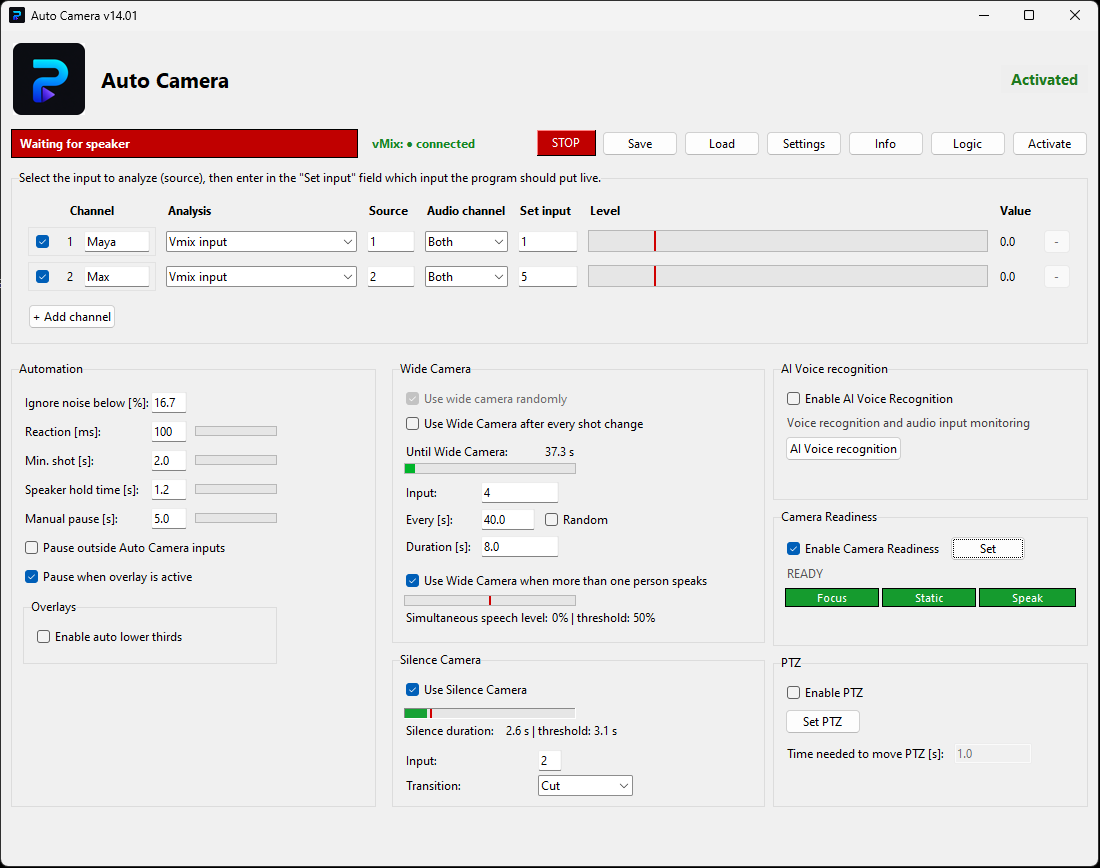
3. Tune the switching rhythm
Start with a short conversation and adjust one control at a time. Set the noise floor and activation threshold so background sound does not repeatedly select an inactive speaker. Then balance reaction time, speaker hold and minimum shot duration.
- If shots change on brief interruptions, increase the hold or minimum shot duration.
- If the new speaker appears too late, review reaction time and whether the activation threshold is too high.
- If the wrong speaker is selected, first check microphone spill, channel selection and the mapping.
There is no single timing preset for every conversation. A fast debate and a calm interview need different pacing.
4. Plan wide shots and manual control
Use wide shots at fixed or random intervals, between close shots or when several people speak. A selected idle camera can cover silence. Keep these choices deliberate so the wide angle adds context instead of interrupting every answer.
Set how automation should pause after a manual CUT, while an overlay is active or when an input outside the assigned cameras is selected. For PTZ productions, test presets and framing changes separately. Camera Readiness can check speaking, sharpness and camera stability before taking a shot; verify its behavior with your actual cameras.
5. Rehearse before going live
Record a rehearsal with ordinary speech, interruptions, laughter and silence. Watch the camera mix back, confirm that manual intervention works, and make small adjustments. Keep a reliable wide shot and a clear way to take control during the live production.
See the Auto Camera for vMix features and download for current availability and licensing. If you are editing an existing recording instead, follow the Premiere Pro podcast editing guide.